Xero Tips : Streamlining Your Purchases & Creditor Processing
If you use Xero mainly to enter supplier invoices manually and reconcile the bank account, you may be doing more work than necessary. A few practical features can reduce data entry, improve visibility over upcoming payments and keep supporting documents attached to the accounting transaction.
Upload supplier invoices
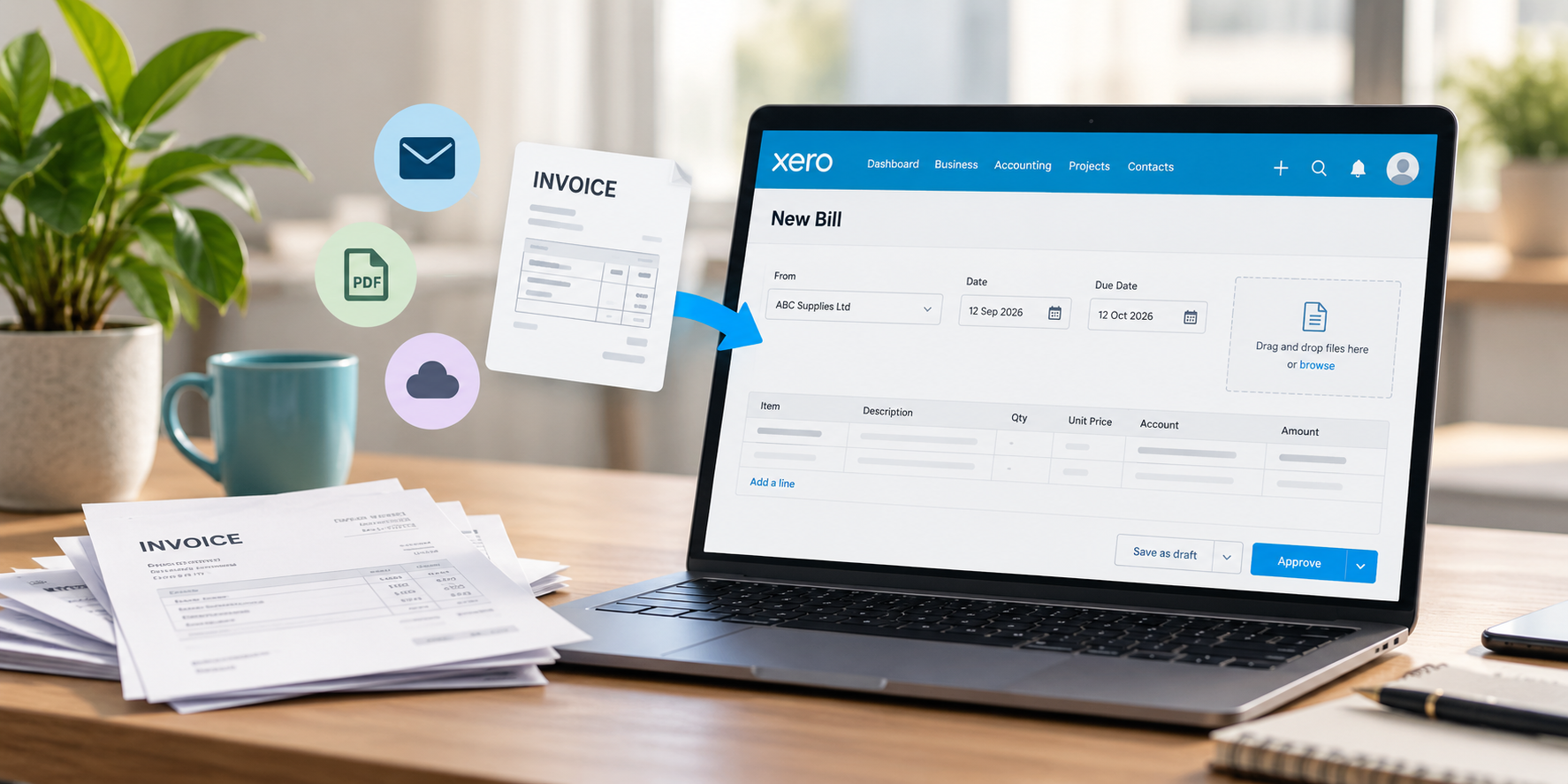
Upload or drag and drop PDF, JPG or PNG invoices into Bills. Xero can extract key details and prepare a draft bill, with the original invoice attached. Always review the supplier, date, invoice number, amount, GST and coding before approval.
Send bills directly to Xero
Use your organisation’s unique bills email address to forward invoices into Xero. Regular suppliers can also send invoices there directly, with your normal email copied if you want visibility. The result is a draft bill ready for review rather than another attachment to save and re-enter.
Keep supporting documents with the transaction
Attaching the invoice to the Xero bill makes later review much easier. It helps when checking an expense or GST treatment, answering an accountant’s query, comparing previous costs, locating an older invoice or supporting records requested for review.
Use document capture as part of your filing system
Documents can be uploaded, emailed or captured on a mobile device. Keeping the source document close to the accounting entry avoids having invoices scattered across email, local drives, cloud folders and Xero. Handling each document fewer times creates a cleaner process.
Photograph receipts promptly
Use the Xero Accounting app to photograph paper receipts while you still have them. Review the extracted information before creating the transaction. This is useful for travel and smaller purchases and reduces reliance on receipts that may fade or be lost.
Use repeating bills for regular expenses
For predictable recurring costs such as rent, subscriptions and leases, a repeating bill can reduce repetitive entry where the accounting treatment is consistent. Check periodically that the amount and coding remain correct.
Plan supplier payments
Entering bills promptly provides a clearer view of what is owed and when payments fall due. Use bill status and planned payment dates to understand upcoming cash requirements rather than relying only on the current bank balance.
Watch for duplicate bills
Invoices may be entered twice when several people process accounts or a supplier resends a document. Xero can flag potential duplicates. Consistently using the Bills function provides stronger control than coding costs only when they appear in the bank feed.
Process multiple supplier payments efficiently
Depending on the banking setup, payment information can be exported from Xero and uploaded to online banking so several bills can be paid together. Xero can then help match and reconcile the payments, reducing manual entry of bank account numbers and amounts.
A simple creditor workflow
- Supplier invoice is received and sent or uploaded to Xero.
- Xero prepares a draft bill with the source document attached.
- The business reviews the supplier, amount, GST, coding and date, then approves the bill.
- The approved bill appears in accounts payable and is scheduled for payment.
- Payment is made when due and reconciled against the bill.
Small changes can make a meaningful difference
The goal is not automation for its own sake. It is to reduce repeated handling and re-keying while maintaining good review controls. Look at each step in the purchase process and ask whether information that already exists electronically can be captured without typing it again. A few practical changes can make supplier invoice and payment processing simpler, faster and more reliable.
If you would like help reviewing how your business processes supplier invoices and payments in Xero, talk to us.